
How Do I Assign a Domain to My Website?
Choosing and assigning a domain name to your website or eCommerce store is an essential step in building your site. Learning how to assign a domain to your website that accurately represents your site and is easy to remember can help establish your online presence. Build brand awareness, boost your website's SEO, and make it easy for people to find your site.
Important: This article applies to customers with a website or eCommerce plan. If you have a different package, please refer to How Do I Manage Domain Connections? or follow the steps outlined in the How to Assign a Domain to Your Hosting Package section of the How Do I Get Started with Web Hosting? article.
In this article, we will discuss:
- How to Assign a Domain Owned on Network Solutions
- How to Assign an External Domain to Your Website
- Review
How to Assign a Domain Owned on Network Solutions
Follow these steps:
- Log in to your account via https://www.networksolutions.com/my-account/login.
- On your Account Manager homepage:
- Click Websites & Hosting from the left navigation menu.
- If you only have one eCommerce or website package, you will be automatically redirected to your Website Builder. If you have multiple packages, click Edit Website next to the eCommerce or website product you want to manage.
Please Note: You can also connect your domain to your website from the Domains tab. For detailed instructions, check out "How Do I Manage Domain Connections?".
- Hover over the left sidebar of the Website Builder and click on the Website Versions button. To learn more about Website Versions, please refer to the Website Versions article.

- Click the assign button to assign a new domain to your site.

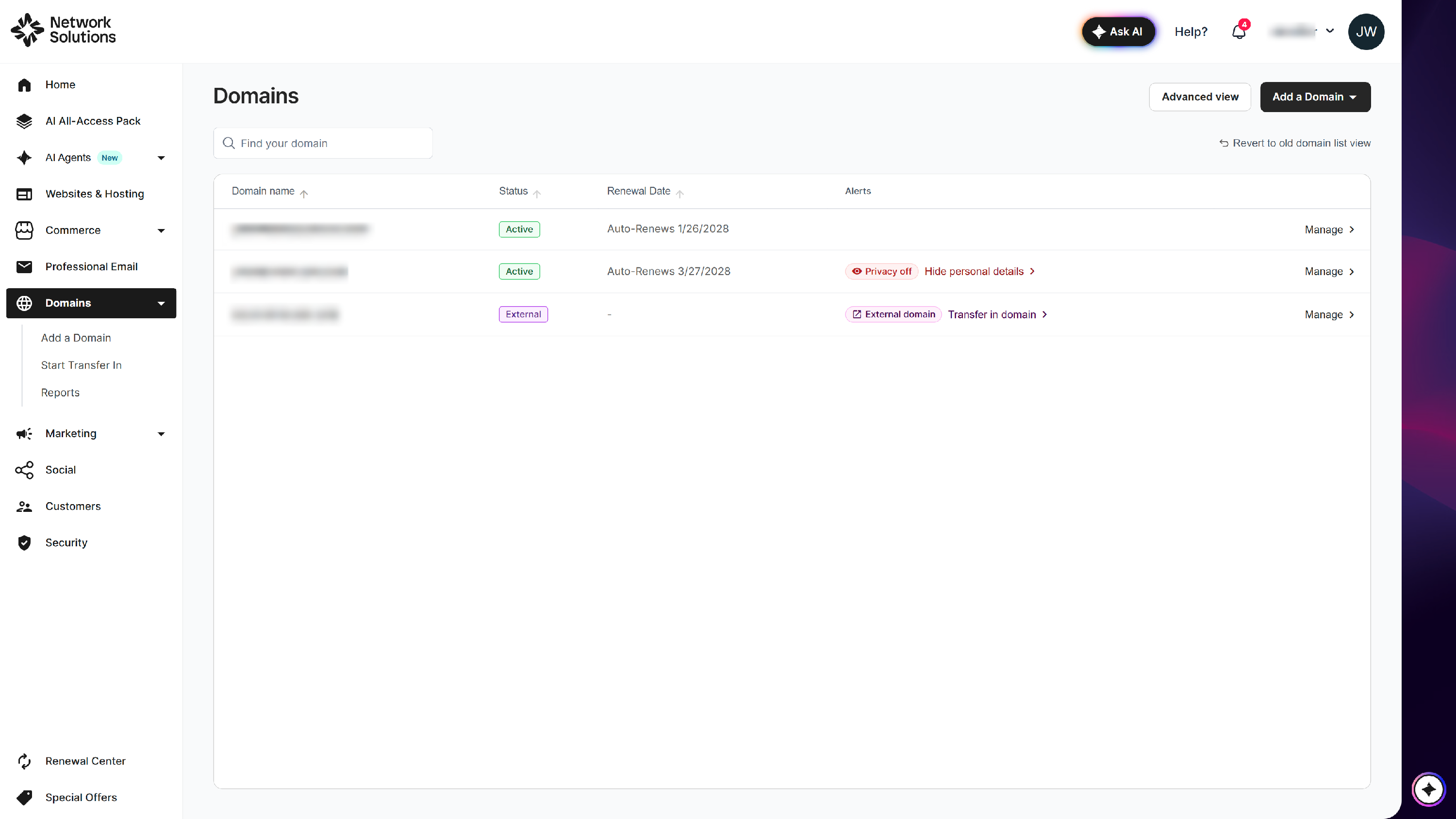
- You will be redirected to the Domains section of the Account Manager. Click Manage to the right of the domain you would like to assign.
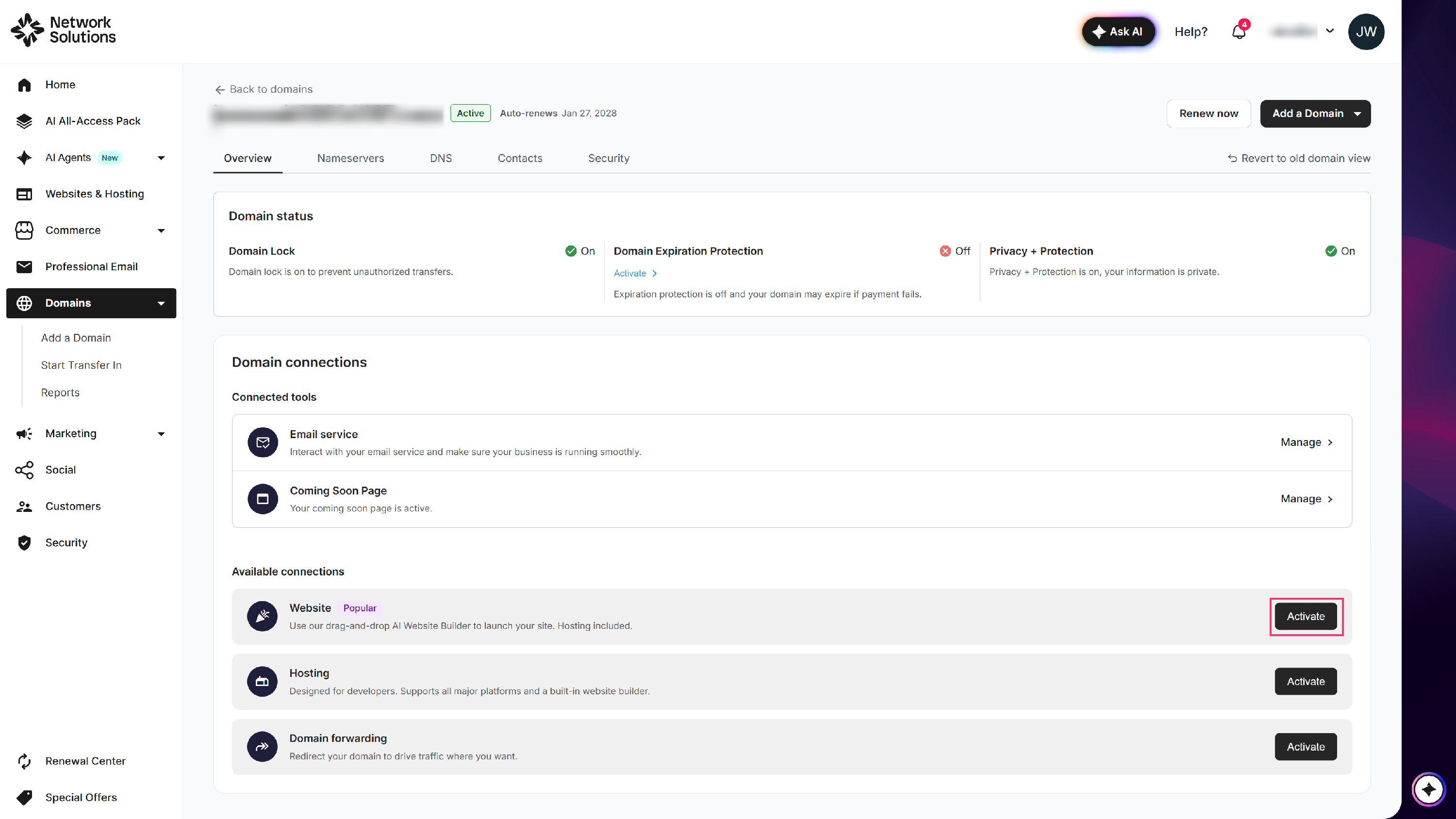
- To assign an existing domain you have with Network Solutions, go to the Available Connections section and click Activate next to the Website.
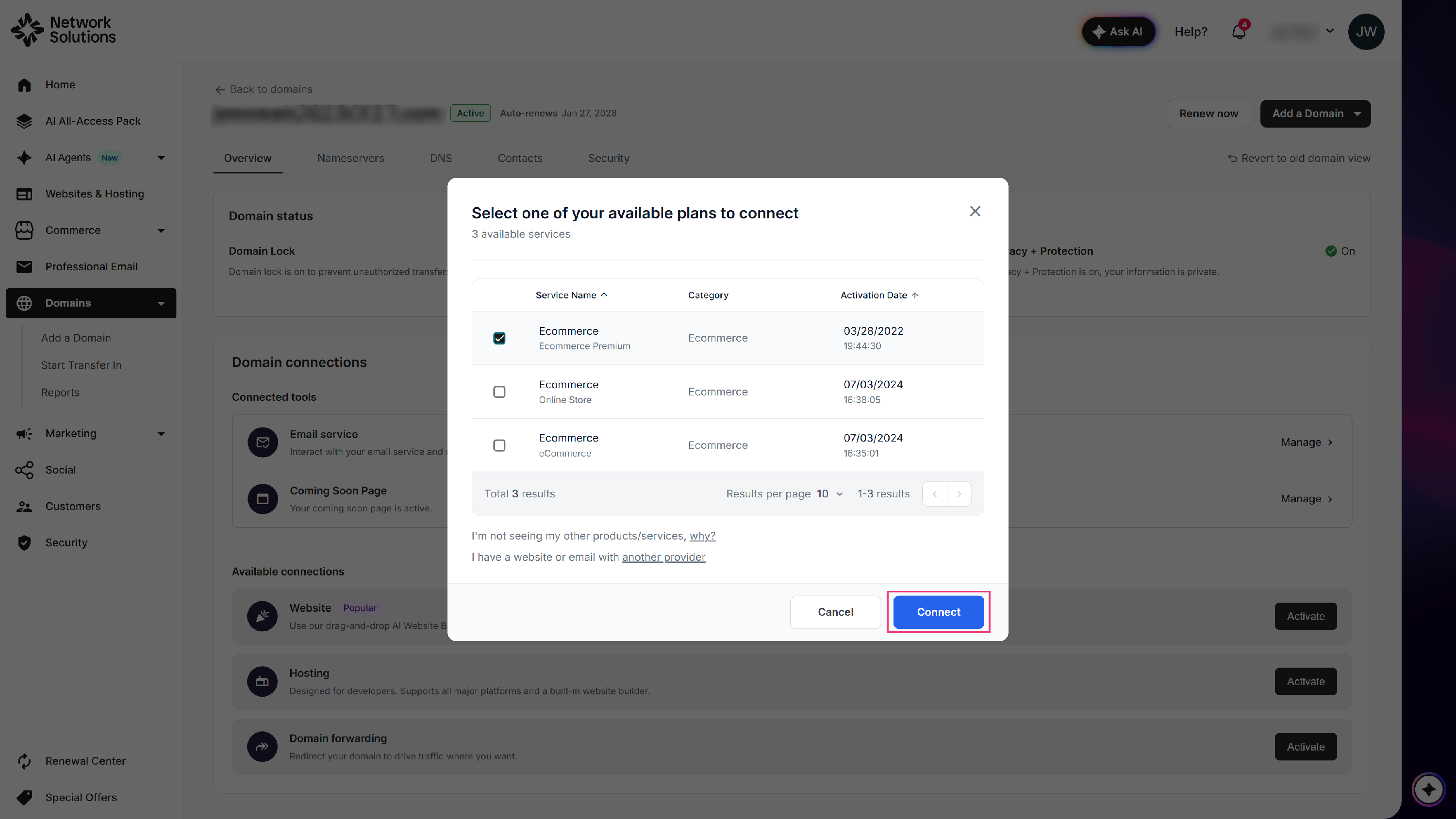
- Choose a website or eCommerce store you would like to connect the domain to and click Connect.
- Confirm the action by clicking Connect.
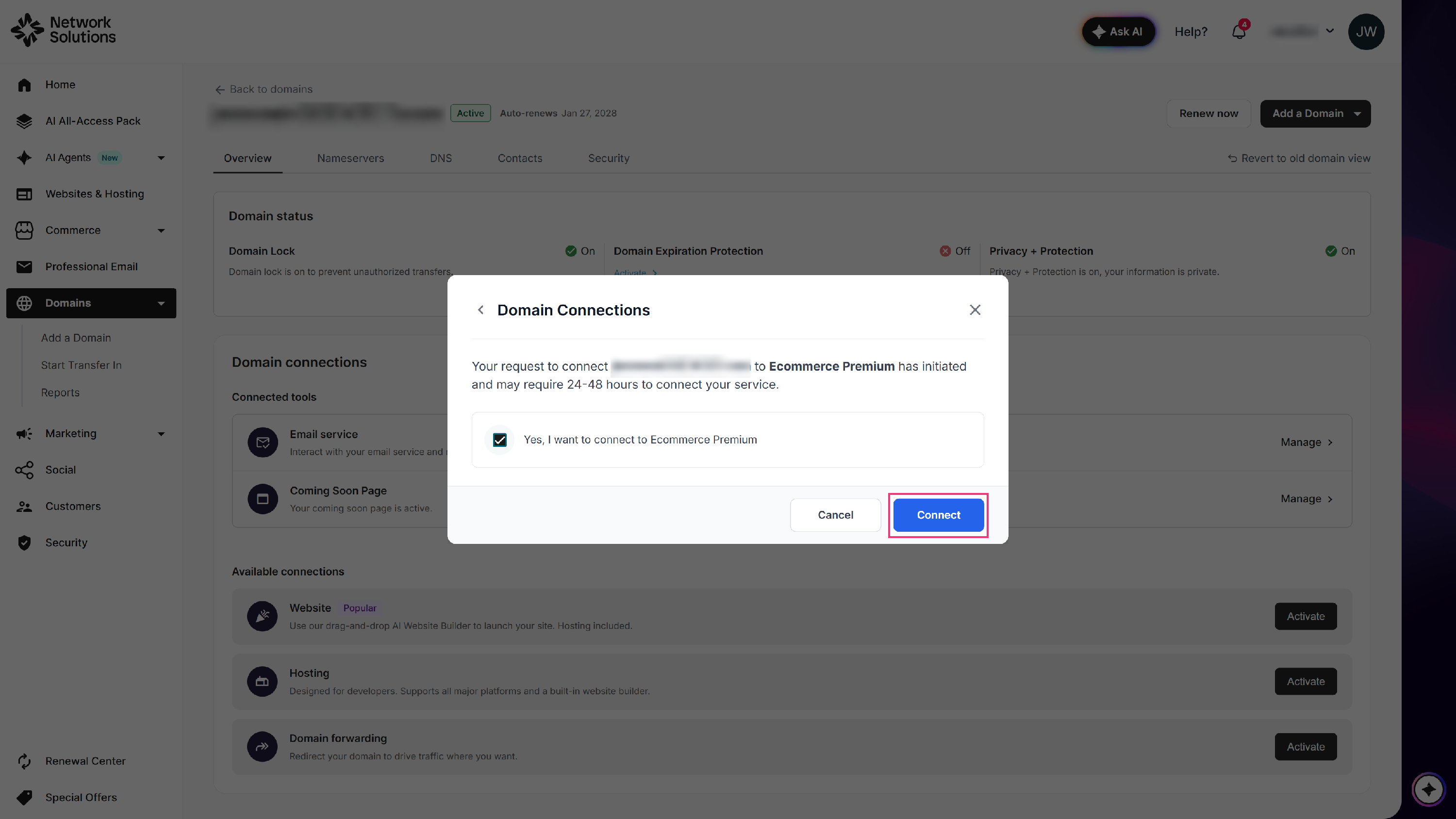
You have assigned an existing domain to your website or eCommerce store. Updates may take 24-48 hours to reflect throughout the internet.
How to Assign an External Domain to Your Website
Follow these steps:
- Log in to your account via https://www.networksolutions.com/my-account/login.
- On your Account Manager homepage:
- Click Websites & Hosting from the left navigation menu.
- If you only have one eCommerce or website package, you will be automatically redirected to your Website Builder. If you have multiple packages, click Edit Website next to the eCommerce or website product you want to manage.
- Click Websites & Hosting from the left navigation menu.
Please Note: You can also connect your external domain to your website from the Domains tab. Click on your external domain and go to Domain Connections. For detailed instructions, check out "How Do I Manage Domain Connections?".
- In the Website Versions section, click on the assign link.
- You will be redirected to the Domains section of the Account Manager. Find your external domain in the list and click Manage on the right.

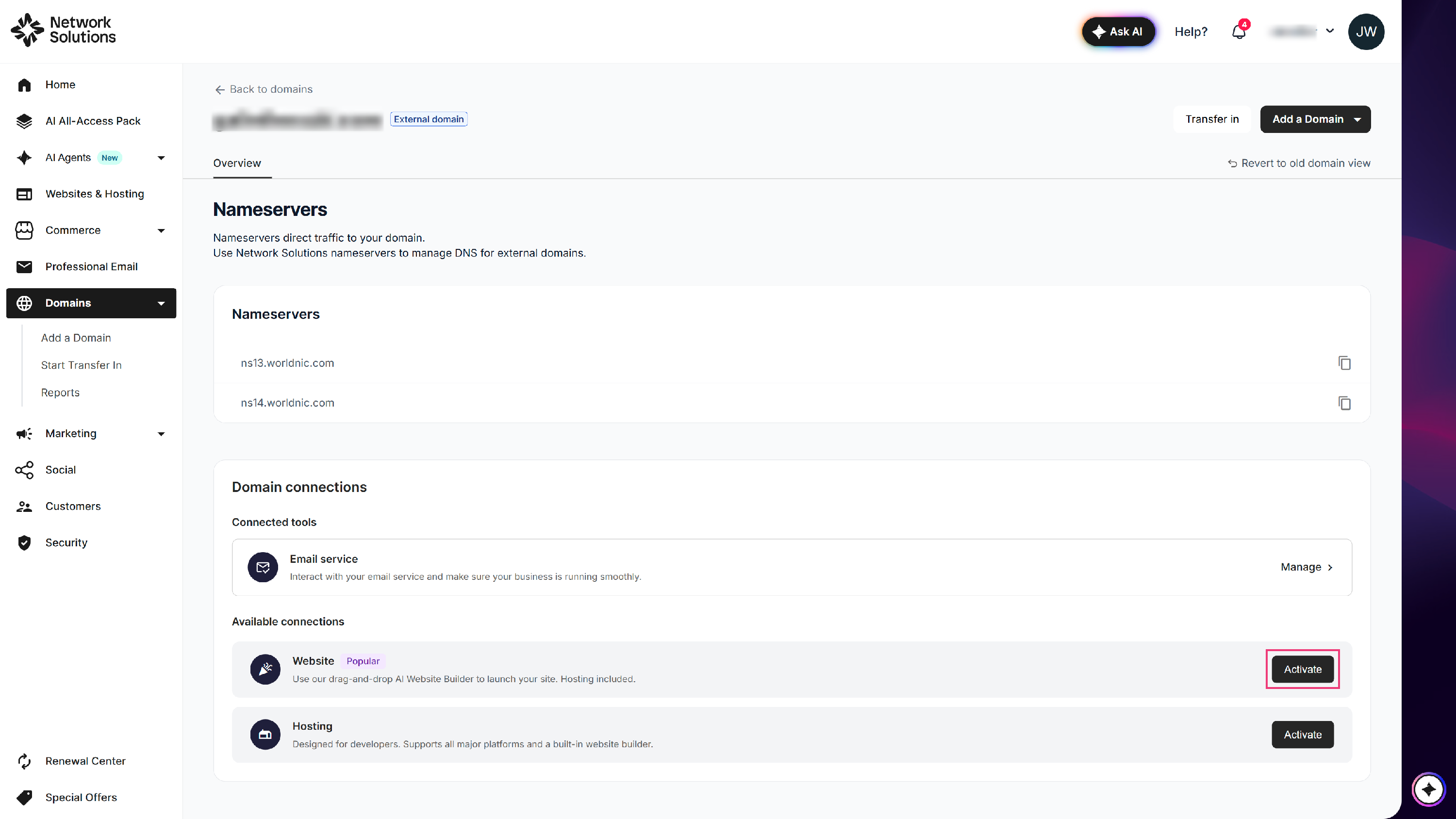
- To assign an external domain, go to the Available Connections section and click Activate next to the Website.
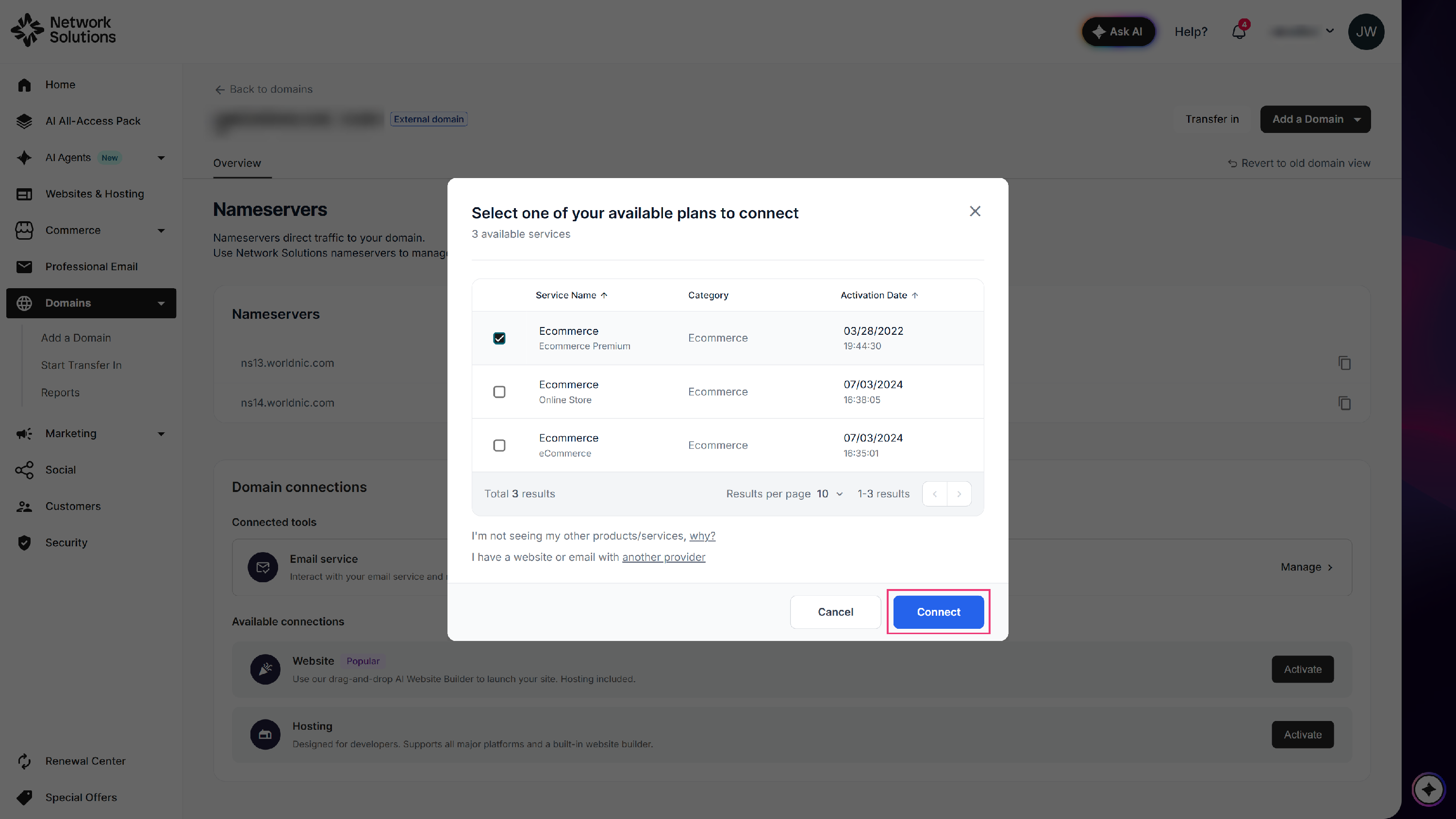
- Choose a website or eCommerce store you would like to connect the domain to and click Connect.
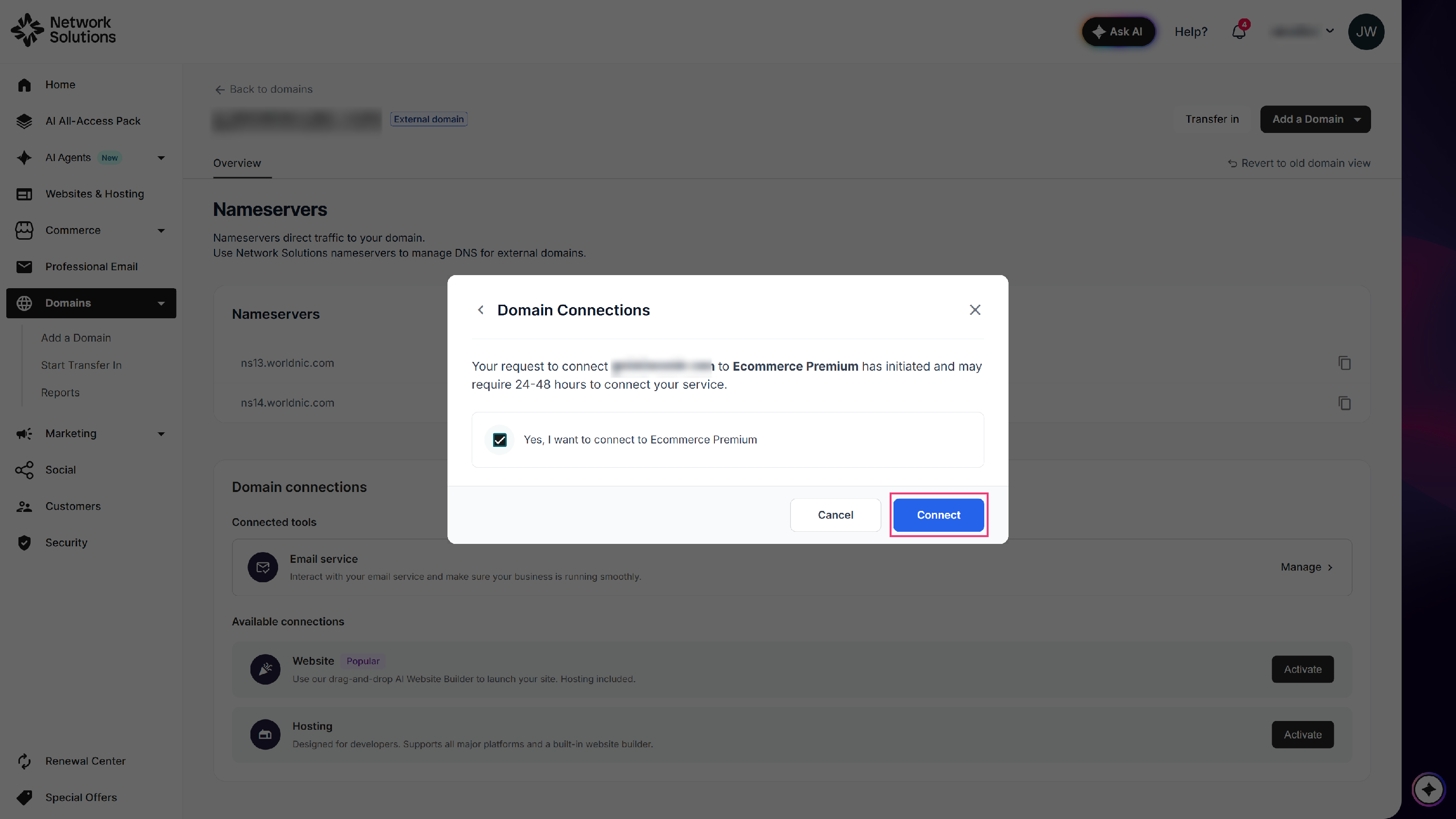
- Confirm the action by clicking Connect.
Please Note: If your domain name is registered with another provider, you will need to supply the Nameserver information to that provider. This will allow your Website, Hosting, SSL Certificate, or email service that is associated with that domain name to work properly. Please refer to How to View and Manage DNS Records for Existing Third-Party Domains for more details.
Review
Learn how to connect a domain to your website or eCommerce store. Whether you have an existing domain with Network Solutions or an external domain, this guide will help you link your domain. Once you have successfully assigned a domain to your site, wait for 24-48 hours for changes to reflect throughout the internet.